Why Document Signing Looks Different on Every Device
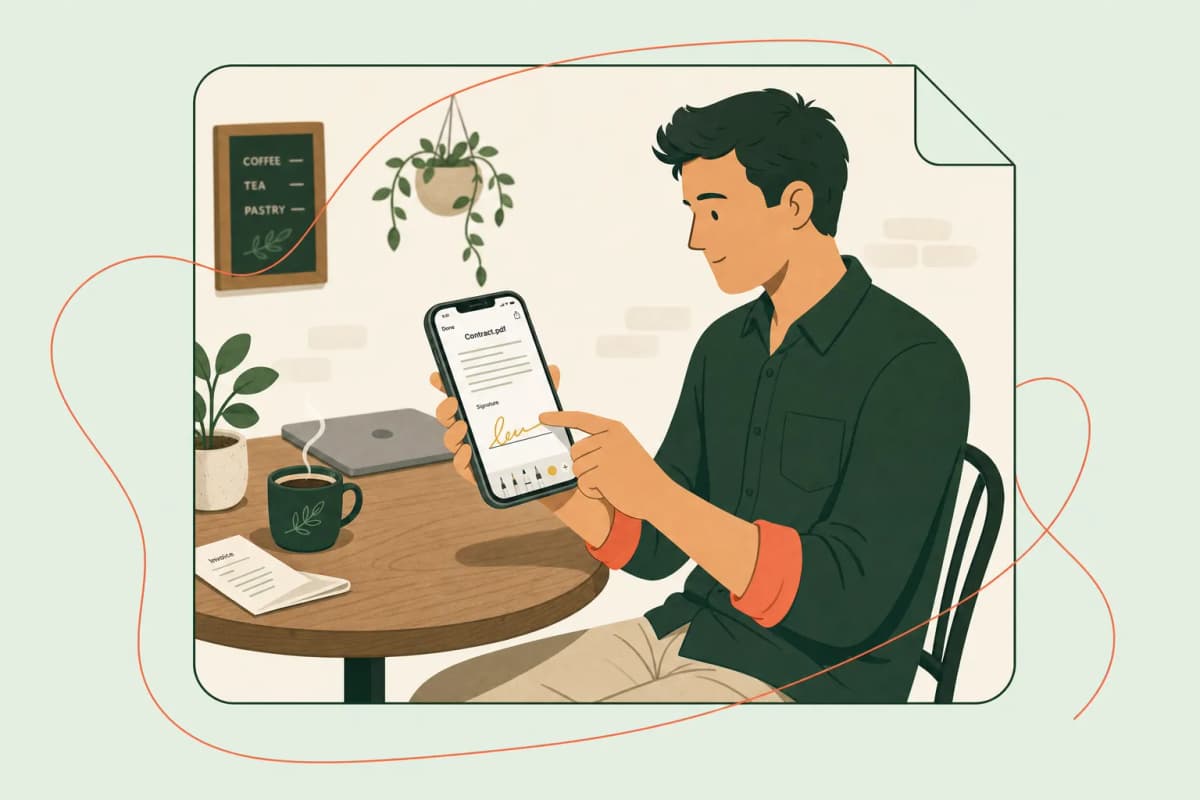
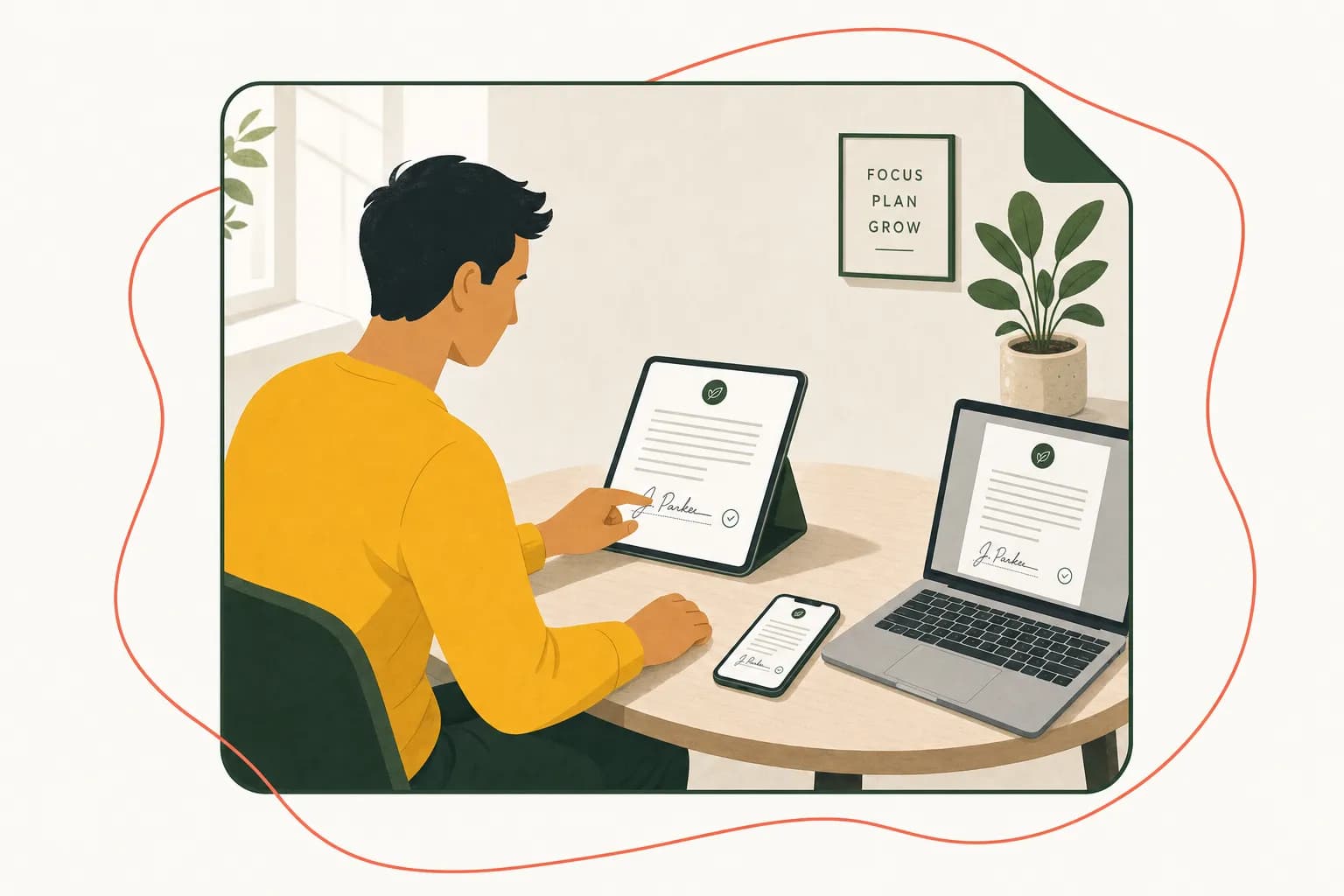
Document signing looks different on every device because each platform—phone, tablet, or desktop—handles screen size, touch input, and file rendering in its own way, which means a signature field that fits perfectly on your laptop might crowd off the edge of your phone screen. If you've ever tried to sign a contract on your phone during a coffee run and ended up pinching, zooming, and squinting at a PDF that clearly wasn't designed for a 6-inch screen, you already know the frustration. You're not imagining it. The experience genuinely does change depending on what's in your hand.
Here's the thing: as a small business owner or freelancer, you're rarely sitting at a desktop when a client needs a signature. You're between meetings, waiting at the airport, or squeezed into a five-minute window before your next call. Your clients are in the same boat. According to the Pew Research Center, a majority of Americans now own smartphones and use them as their primary way to access documents, email, and forms online. That means the days of assuming everyone will sit down at a computer to review and sign a contract are long gone.
The trouble is, not every signing tool was built with that reality in mind. Some platforms still render documents as static images that don't adapt to smaller screens. Others require plug-ins or downloads that work fine on a laptop but fail entirely on a tablet browser. And touch input itself is a different beast—drawing a signature with your finger on a phone screen feels nothing like signing with a mouse, and it's a far cry from the smooth motion of an actual pen, which is part of why so many people still ask about the differences discussed in our post on what is a wet signature and do you still need one.
Think of it like trying to watch a movie on three different screens: a home theater, a laptop, and a smartwatch. The content is the same, but the experience—the readability, the controls, the sense of control you have over what's happening—shifts dramatically. Document signing works the same way. A form that's simple to complete on a widescreen monitor can turn into a maze of tiny checkboxes on mobile.
This inconsistency isn't just annoying. It creates real friction in the sales and onboarding process. If a client can't easily sign your proposal from their phone, they might wait until they're back at their desk—and "later" often turns into "never." Understanding why these differences exist is the first step toward choosing tools and workflows that keep signing smooth no matter what device shows up on the other end. We'll also touch on related situations you might run into, like how to scan a signature and use it digitally or how to sign a document on an iPhone, since those small technical hurdles matter more than people expect.
How to Sign Documents on iPhone and iOS
Here's the good news: if you've got an iPhone in your pocket, you already have everything you need to sign a PDF without downloading a single extra app. Apple baked signing tools directly into iOS, and once you know where to look, it takes less than a minute to add your signature to a contract, a lease, or that permission slip your kid's school keeps emailing about.
Signing a PDF in Mail
Picture this: someone emails you a PDF that needs your signature, and you're standing in line at the grocery store. No laptop, no printer, no scanner — just your phone. Open the Mail app, tap the attachment to preview it, and look for the Markup icon — it looks like a pen tip inside a circle. Tapping it opens Apple's built-in Markup tool, which lets you draw, highlight, and yes, sign directly on the document.
To add your signature, tap the plus button, then select "Signature." You can either draw your signature with your finger (or an Apple Pencil if you have one) or use a signature you've saved from a previous session. Drag it into place, resize it if needed, and tap Done. Mail will ask if you want to send the signed version back as a reply — one tap, and you're finished. According to Apple's own support documentation, this Markup feature works across Mail, Photos, Notes, and other apps, so once you learn it in one place, it works everywhere.
Signing a PDF in the Files App
If the document is already saved on your phone rather than sitting in your inbox, the Files app is your best friend. Open Files, find your PDF, and tap it to open the preview. You'll see that same Markup pen icon in the top corner. Tap it, and you get the same signature tools as in Mail — draw, add text, insert your saved signature, whatever the document needs.
This matters more than it might seem. Freelancers and small business owners often deal with contracts that arrive as downloads rather than email attachments — think client agreements pulled from a cloud drive or invoices exported from accounting software. Knowing that Files can handle signing just as well as Mail means you're never stuck wondering how to get a signature onto a document that didn't arrive in your inbox.
Where Native Tools Fall Short
Markup is great for quick, one-off signatures, but it doesn't track who signed what, when, or verify identity the way a proper e-signature platform does. If you're sending contracts to clients regularly, you'll want something that handles audit trails, reminders, and multi-party signing without you manually forwarding PDFs back and forth. That's where a dedicated tool like Dochives comes in — it keeps the simplicity of tapping to sign but adds the structure a growing business actually needs.
Try Dochives free at https://dochives.com and see how much faster professional document signing can be.
How to Sign Documents on Android Devices
If you're an Android user, you already know the ecosystem works a little differently than Apple's walled garden. There's no single "Markup" tool baked into every app the way iOS has it. Instead, Android leans on a mix of built-in viewers, Google's own apps, and a wide field of third-party options. That's not a bad thing — it just means you have more choices, and a little more homework to figure out which one fits your workflow.
Using Google Drive and Google Docs
For a lot of small business owners, the simplest starting point is Google Drive. If you open a PDF stored in Drive, you'll see a small pencil or "Fill & Sign" icon in the toolbar. Tap it, and you can draw your signature directly on the document with your finger or a stylus, resize it, and drop it wherever it needs to go. It's not fancy, but it gets the job done for a quick invoice approval or a one-off form.
Google Docs itself doesn't have a native e-signature feature yet, though Google has been building out more integrated signing tools within Google Workspace over time — worth checking your admin settings if you run a business account, since availability varies by plan. You can read more about what's currently supported directly from Google's Workspace documentation.
Built-In PDF Viewers
Most Android phones ship with some version of a PDF reader — Samsung devices, for instance, often include their own viewer that supports basic annotation and signature drawing. These built-in tools are fine for internal use, like initialing a page for your own records. But if you're sending a contract to a client and need something that feels professional — with fields, timestamps, and a verifiable audit trail — a built-in viewer usually won't cut it.
Third-Party Apps for Serious Signing
This is where dedicated e-signature apps come in handy, and it's honestly where most freelancers and small business owners end up. Apps like Adobe Acrobat Reader, Dochives, and similar tools let you upload a document, place signature fields exactly where you need them, and send it off for signing — all without leaving your phone. Adobe's own guidance on electronic and digital signatures explains the technical distinction well if you want to understand what's happening under the hood: Adobe's overview of digital signatures.
Think of it like the difference between scribbling your name on a napkin versus signing at a notary's desk. Both are "signatures," but only one carries the weight you need for business. The Electronic Signatures in Global and National Commerce Act (E-SIGN Act) actually gives electronic signatures the same legal standing as pen-and-paper ones in the U.S., as long as certain consent and record-keeping requirements are met — you can read the details straight from the Federal Trade Commission's summary of the E-SIGN Act.
If you're signing contracts regularly on your Android phone — not just once in a blue moon — it's worth using a tool built for that purpose. Try Dochives free and see how much faster professional document signing can be: https://dochives.com
How to Sign Documents on a Mac Using Preview
If you're on a Mac, you're sitting on a signing tool you probably already use for something else entirely — Preview. It's the app that opens your PDFs and image files by default, and tucked inside it is a genuinely capable signature feature that Apple built years ago and quietly kept improving. No app store visit required, no account to create. It's just... there.
Here's how it works. Open the document you need to sign in Preview — usually a PDF sent to you as an email attachment. Once it's open, look for the markup toolbar icon (it looks like a pen tip inside a circle) near the top-right of the window. Click it, and a secondary toolbar appears with tools for shapes, text, and — what you're after — a signature icon that looks like a little cursive scribble.
Click that signature icon and you'll get two options for creating your signature: trackpad or camera.
Trackpad method: Click "Create Signature," then use your finger to sign directly on the trackpad as if it were paper. It takes a couple of tries to get a signature that looks like, well, your signature. Don't worry — you can redo it as many times as you want before saving.
Camera method: This one feels almost like a magic trick the first time you try it. Sign your name on a plain white sheet of paper with a dark pen, hold it up to your Mac's built-in camera, and Preview scans it, extracting just the signature and dropping the background. It's genuinely a cleaner result than the trackpad method for most people, since it captures your actual handwriting rather than a mouse-drawn approximation.
Once created, your signature is saved in Preview and ready to reuse. Click the signature icon again anytime, select the one you made, and drag it onto the page. You can resize it and reposition it until it sits naturally over the signature line. Save the file, and you're done — no printing, scanning, or faxing involved, which honestly should have been retired decades ago as document-handling methods anyway.
One thing worth knowing: Preview's signature feature works well for straightforward, single-signer documents, but it doesn't offer audit trails, identity verification, or multi-party routing. If you're closing a client contract or need proof of who signed and when, that's where dedicated e-signature tools come in. Apple's own Preview support documentation covers the basics well, but it's not built for compliance-heavy workflows the way the U.S. federal ESIGN Act framework anticipates for legally binding electronic signatures.
For business documents where more than just you and one other person needs to sign — or where you want a verifiable record — try Dochives free and see how much faster professional document signing can be.
How to Sign Documents on a Windows PC
Windows doesn't have a built-in signing tool quite like Preview on macOS, but that doesn't mean you're stuck printing, signing, and scanning every contract that lands in your inbox. Between Microsoft's own apps and a handful of browser-based PDF editors, you've actually got more options on a PC than you might expect — you just have to know where to look.
Signing with Microsoft Edge
If you're running Windows 10 or 11, you already have a decent signing tool sitting in your taskbar: Microsoft Edge. Edge has a built-in PDF reader with a "Draw" feature that lets you sign directly on a document using your mouse, trackpad, or a touchscreen with a stylus. Just open the PDF in Edge, click the pen icon in the toolbar, choose a pen color and thickness, and sign in the space provided. It's not elegant — signing with a mouse feels a bit like writing your name with a bar of soap — but it works in a pinch, especially if you have a Surface device or another PC with pen support through Windows Ink.
Signing with the Windows Snipping Tool and Photos App
Another low-tech option: sign your name on paper, snap a photo or scan it, and use the Windows Photos app or Paint to crop and clean up the image. Then insert that signature image into a Word document or PDF. It's clunky, and honestly, it's the digital equivalent of duct tape — functional, not pretty. Most freelancers try this once and immediately look for something better.
Adobe Acrobat Reader
If you sign documents often, Adobe Acrobat Reader is worth installing. Its free Fill & Sign tool lets you type your name in a signature-style font, draw one with your mouse, or upload an image of your actual signature. It also handles form fields nicely, which matters if you're dealing with W-9s, NDAs, or vendor agreements that require more than just a signature line.
Browser-Based PDF Editors
This is where things get interesting for small business owners juggling contracts on tight timelines. Tools like Dochives run entirely in your browser, so there's nothing to install and no compatibility headaches between Windows versions. You upload a document, add your signature, and send it back — often in under two minutes. That speed matters when you're closing a deal and the client is waiting on the other end of an email thread, refreshing their inbox.
Unlike Edge's draw tool or a scanned image, browser-based signing platforms are typically built to comply with the U.S. ESIGN Act and offer an audit trail, which adds a layer of legal protection that a hand-drawn scribble simply doesn't provide.
If you're tired of piecing together Edge, Paint, and a scanner just to sign one contract, try Dochives and see how much faster professional document signing can be on Windows.
Why a Dedicated E-Signature Tool Like Dochives Beats Native Apps
By now you've seen the drill: Markup on iPhone, a different gesture on Android, Preview on Mac, and yet another workaround in Windows' built-in PDF tools. Each method works fine in isolation, but here's the catch — switching between them every time you get a document to sign is exhausting. You end up relearning a slightly different process depending on which device happens to be in your hand, and that friction adds up fast when you're running a business and signing contracts, invoices, and agreements on a near-daily basis.
This is exactly where a dedicated e-signature platform earns its keep. Instead of juggling four different native workflows, you use one interface — the same buttons, the same steps, the same look and feel — whether you're on your laptop at your desk, your phone in a client's lobby, or a tablet on a job site. Consistency isn't just a nice-to-have; it's what lets you sign a lease in thirty seconds without stopping to think, "wait, how do I do this on this device again?"
Think of it like driving a rental car versus your own. Native tools are rental cars — the pedals are roughly where you expect, but the blinker's on the wrong side and you're fumbling for the wipers in the rain. A tool like Dochives is your own car. You get in, and everything just works, because it's the same experience every single time, on every device.
There's also a workflow speed argument that goes beyond muscle memory. Native apps are built for basic markup, not for managing multi-party agreements. If you need a client, a contractor, and yourself all signing the same document, native tools quickly hit their ceiling — you're emailing PDFs back and forth, hoping nobody edits the wrong field or forgets to initial a page. A dedicated platform handles routing, tracks who's signed and who hasn't, and keeps everything in one audit trail, which matters a lot if a signature's legal standing is ever questioned. The U.S. ESIGN Act already establishes that electronic signatures carry the same legal weight as pen-and-paper ones, but having a clear, consistent record of consent and identity makes that protection much easier to prove if you ever need to.
For a small business owner or freelancer, that reliability translates directly into saved time. Fewer clicks, fewer "which app was this again" moments, and fewer documents lost in email threads. Try Dochives free and see how much faster professional document signing can be — the difference is less about flashy features and more about never having to relearn how to sign your name depending on what's in your pocket that day.
CTA: Try Dochives free
Are E-Signatures Legally Valid Everywhere?
Short answer: yes, in the vast majority of the world, electronic signatures carry the same legal weight as ink on paper. But "yes" comes with some fine print, and if you're running a business that signs contracts across state lines or international borders, it's worth understanding exactly why that's true — not just taking my word for it.
Let's start in the United States. Back in 2000, Congress passed the ESIGN Act, formally known as the Electronic Signatures in Global and National Commerce Act. This law says that a signature, contract, or record can't be denied legal effect just because it's electronic. That's a big deal. It means a click-to-sign agreement on your phone holds up in court the same way a wet signature would, as long as certain conditions are met — the signer has to consent to doing business electronically, there needs to be a clear intent to sign, and the record has to be retrievable later if needed. Most states also follow the Uniform Electronic Transactions Act (UETA), which mirrors these principles at the state level. So whether you're a freelancer in Ohio signing a client contract or a small business owner in Texas closing a lease, you're covered by the same basic framework.
Now hop across the Atlantic. The European Union has its own version called eIDAS (Electronic Identification, Authentication and Trust Services), which went into effect in 2016. eIDAS is actually a bit more layered than the ESIGN Act — it recognizes three tiers of e-signatures: simple, advanced, and qualified. A simple e-signature works fine for everyday business documents, like a freelance agreement or an invoice sign-off. But if you're dealing with something higher-stakes, say a real estate transaction or a regulated financial contract, some EU countries require an "advanced" or "qualified" signature, which involves stronger identity verification and cryptographic backing.
Here's the practical takeaway: for the everyday paperwork most small businesses deal with — client contracts, NDAs, invoices, vendor agreements — a standard e-signature is almost always legally sufficient, whether your client is in Chicago, London, or Berlin. Countries like Canada, Australia, and the UK have their own comparable laws too (Canada's PIPEDA framework and the UK's Electronic Communications Act, for instance), and they generally align with the same core idea: intent plus consent plus a reliable record equals a valid signature.
Where it gets tricky is in specific document types — wills, certain court filings, powers of attorney, and some real estate deeds still require wet ink or notarization in various jurisdictions. If you're ever unsure, a quick check with a local attorney beats guessing. But for the contracts and agreements that make up 95% of small business paperwork? You're on solid legal ground going digital.
Typed vs Drawn vs Uploaded Signatures: What's the Difference
Once you've settled on a tool for signing your documents, you'll hit a smaller but surprisingly important decision: how should your signature actually look? Most e-signature platforms, including Dochives, give you three ways to create one — typing your name in a stylized font, drawing it with your finger or mouse, or uploading an image of your handwritten signature. They all satisfy the legal requirements we covered earlier, since the ESIGN Act and UETA care about intent to sign, not artistic style. But that doesn't mean the three methods are interchangeable in practice.
Typed signatures are the fastest option, and honestly, they're the one most people default to when they're in a hurry. You type your name, pick a cursive-style font, and you're done in seconds. This works fine for internal approvals, quick sign-offs on a project brief, or any document where speed matters more than presentation. The downside? A typed signature can feel a little impersonal, and if you're signing something client-facing — a contract, a proposal, an invoice — it might come across as less considered than a signature that actually resembles your handwriting.
Drawn signatures split the difference. Using your finger on a phone or tablet, or a trackpad on a laptop, you draw your name freehand right on the screen. It takes a bit more effort than typing, but the result looks more like an actual signature. I'd recommend this method for anything going to a client or partner where a bit of authenticity matters — think retainer agreements, service contracts, or lease documents. The catch is that trackpad signatures, in particular, can look shaky or amateurish unless you've practiced a few times. A stylus or touchscreen gives noticeably better results than a mouse.
Uploaded signatures are the most polished option, and they're worth the extra setup time if you sign documents regularly. Here's how it works: you sign your name on a blank piece of paper, take a photo or scan it, and upload that image to use across every future document. Because it's your actual handwriting, it looks consistent and professional every single time — no redrawing, no variation between signatures. Freelancers and small business owners who send contracts weekly tend to gravitate toward this method once they realize how much time it saves compared to drawing a fresh signature each time.
So which should you use? For quick internal approvals, type it. For occasional client documents, draw it. For anything that represents your brand on a recurring basis — proposals, contracts, invoices — upload a scanned signature and reuse it. Dochives supports all three methods, so you can match the approach to the document rather than being locked into whatever your device's native tool offers.
How to Request Signatures From Clients and Partners Remotely
Sending a document off into the void and hoping someone signs it isn't a strategy — it's a gamble. If you've ever emailed a PDF and then spent a week wondering whether your client even opened it, you know exactly what I mean. Requesting signatures remotely only works well when you build a little structure around it, and that structure is what separates freelancers who get paid on time from the ones chasing invoices at midnight.
Start with a clear, contextual request. Don't just attach a file and write "please sign." Tell the recipient what they're signing, why it matters, and what happens next. A one-line summary — "This is the updated scope of work we discussed Tuesday, please sign by Friday so we can start on schedule" — dramatically increases the odds someone acts quickly. People sign faster when they understand the stakes, not just the paperwork.
Use a tool built for tracking, not just sending. Email is fine for conversation, but it's a black hole for accountability. A dedicated e-signature platform like Dochives lets you see exactly when a document was opened, viewed, and signed, so you're not stuck guessing or sending awkward "just checking in" follow-ups. This kind of audit trail also matters legally — the U.S. government's guidance under the ESIGN Act recognizes electronic records and timestamps as part of what makes an e-signature enforceable, so tracking isn't just convenient, it's protective.
Set expectations with deadlines and reminders. Most e-signature tools let you build in automatic reminders, which quietly do the nagging for you. Instead of you emailing "did you get a chance to look at this," the system pings them on your behalf. It's a small thing, but it preserves the relationship — nobody wants to feel like the annoying vendor.
Break multi-party signing into a clear order. If a document needs sign-off from both a client and their business partner, or from you and a subcontractor, use sequential signing so each party is notified only when it's their turn. This avoids the confusion of three people editing or signing out of order, which can create version chaos.
Confirm completion and store the result immediately. Once everyone's signed, don't just let the finished document sit in an inbox. Download it, back it up, and log it somewhere searchable. The Small Business Administration's guidance on recordkeeping for small businesses is a good reminder that signed contracts are part of your compliance trail, not just a formality.
Remote signing works best when it feels effortless for the other person and fully visible to you. Try Dochives free and see how much faster professional document signing can be: https://dochives.com
People Also Ask
How do I sign a document on my phone or tablet?
Honestly, it's easier than most people expect. You can open a PDF on your phone, tap to add a signature, and send it back within a couple of minutes — no printer, no scanner, no fuss. The built-in tools on iOS and Android work fine for a quick one-off signature, but if you're signing (or requesting signatures) regularly, an app like Dochives gives you a smoother, more consistent experience across every device you own. Try Dochives free at https://dochives.com and see how much faster professional document signing can be.
Are electronic signatures legally binding on any device?
Yes — in most cases, an electronic signature is legally binding regardless of whether you signed it on a phone, tablet, or laptop. In the U.S., the ESIGN Act and the Uniform Electronic Transactions Act (UETA) give e-signatures the same legal weight as ink signatures, and similar laws exist across the EU under eIDAS. The device doesn't determine validity — what matters is intent to sign, consent to do business electronically, and a reliable audit trail.
What's the best free way to sign a PDF document?
If you just need to sign a single page once, your device's native tools (Markup on iPhone, Preview on Mac, or a free Android PDF app) will get the job done. But for anything involving multiple parties, tracking, or repeat use, a dedicated e-signature platform is worth the switch. Dochives lets you try it free, so you can compare the experience yourself before committing to anything.