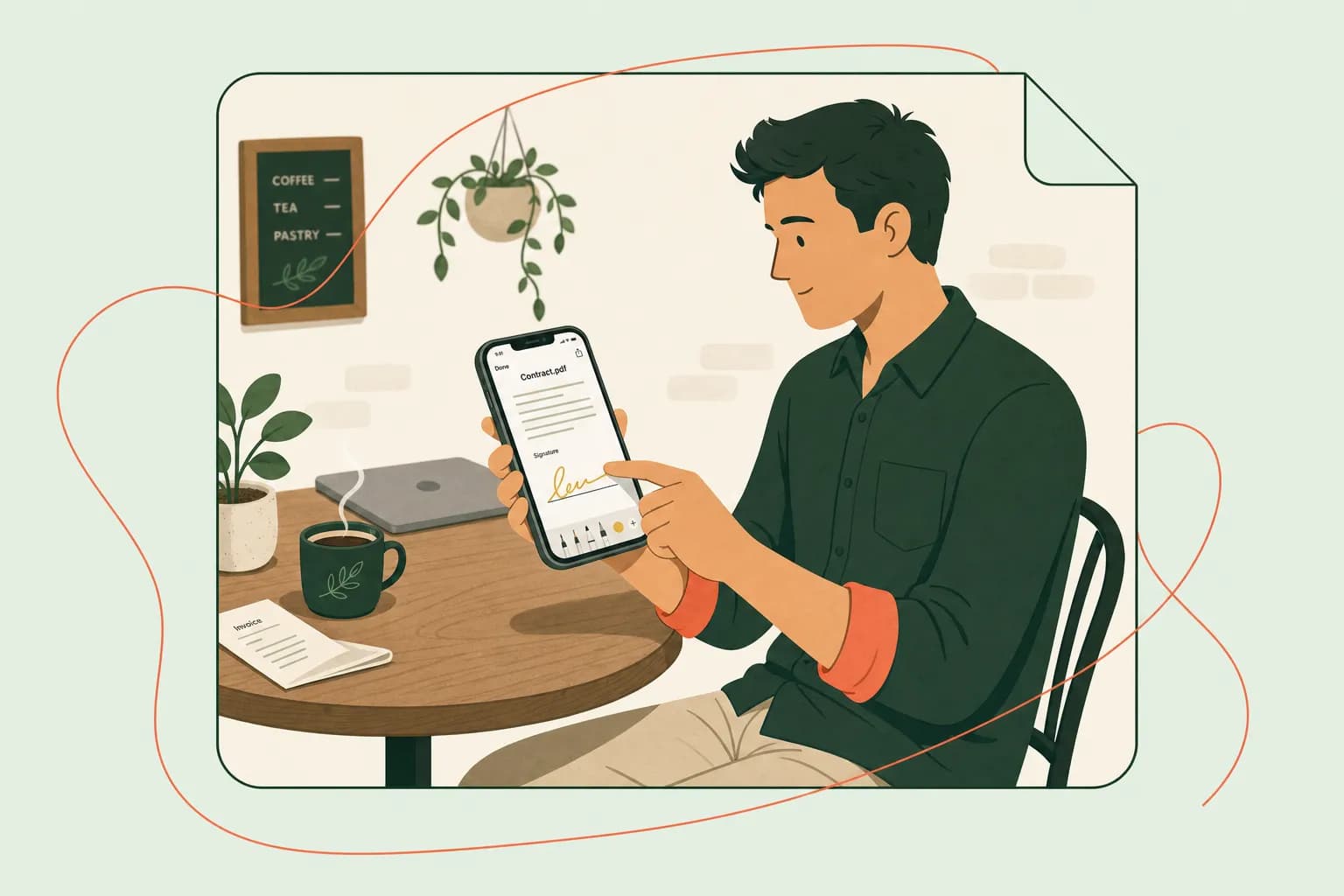
Sign a PDF on iPhone Using the Built-In Markup Tool
If you need to sign a PDF on iPhone right now, here's the short answer: you don't need to download a single app. Apple built a signing tool right into iOS called Markup, and it lives inside the apps you already use every day — Files, Mail, and Photos. Open the PDF, tap the Markup icon (it looks like a pen tip inside a circle), add your signature, and send it off. That's it. No sign-ups, no subscriptions, no hunting through the App Store for a "PDF signer" that might or might not be trustworthy.
I get why this surprises people. We've been trained to think signing a document electronically requires special software or a dedicated e-signature platform. Sometimes it does, especially for legally sensitive contracts (more on that in a bit). But for a huge number of everyday situations — signing a lease addendum, initialing a freelance agreement, or approving a vendor invoice — Markup is more than enough.
Here's how to actually do it. If the PDF is in your Files app, tap to open it, then tap the Markup icon in the top-right corner of the screen. If it arrived as an email attachment in Mail, open the attachment, tap it to expand the preview, and you'll see the same Markup icon. Once Markup is active, tap the "+" button and select "Signature." iPhone will let you either draw your signature directly on the screen with your finger (or Apple Pencil, if you're lucky enough to have one) or use a signature you've saved from a previous session. Drag it into place, resize it if needed, and tap Done. Save the file, and you've got a signed PDF sitting on your phone, ready to send back.
The Photos app version works a bit differently but solves a common real-world problem: what if someone hands you a paper document instead of a PDF? Snap a photo of it, open the image in Photos, tap Edit, then tap the Markup icon. You can sign directly on the photo. It won't look as polished as a true PDF signature, but it's perfectly functional for low-stakes documents. If you want a cleaner result, our guide on how to scan a signature and use it digitally walks through creating a crisp, reusable signature image instead.
Is Markup right for everything, though? Not quite. It's great for convenience, but it doesn't include audit trails, timestamps, or identity verification — things that matter for higher-stakes contracts. If you're weighing whether a scribbled signature even counts legally, our breakdown of wet signatures is worth a read, and if you're deciding between formats entirely, check out wet signature vs. electronic signature for the fuller picture. The U.S. General Services Administration and other federal bodies recognize electronic signatures under the ESIGN Act, so you're generally on solid legal ground either way for routine business documents.
Step-by-Step: Opening a PDF Attachment and Adding Your Signature
So you've got an email sitting in your inbox with a PDF attached, and someone's waiting on your signature. Where do you even start? Honestly, it's less complicated than most people expect — the trick is knowing exactly where to tap, because Apple buries the good stuff a layer or two deep.
Let's say the PDF landed in your Mail app first. Open the email, then tap directly on the attachment thumbnail — not the subject line, the actual file preview. iOS will load it in Quick Look, which is Apple's built-in file viewer. You'll notice a small toolbar at the top of the screen once it opens. Look for the icon that looks like a pen tip inside a circle; that's the Markup tool, and tapping it flips you into signature-and-annotation mode. From here, everything works the same way whether the file came through Mail, Messages, or a Files app folder.
If the PDF is sitting in your Files app instead — maybe someone shared it via AirDrop or you downloaded it earlier — open Files, find the document, and tap it once to preview. You'll see that same pen-in-circle Markup icon in the top-right corner. One tap gets you into the same signing interface, no matter which route you took to get there.
Once you're in Markup, tap the plus (+) button, then choose Signature from the pop-up menu. If you've signed something on your iPhone before, your saved signature will already be sitting there, ready to drop in. If not, you'll sign once with your finger — or an Apple Pencil if you've got one, which honestly makes for a cleaner result — and iOS will remember it for next time. Drag the signature into place, resize it with the little blue handles until it fits naturally over the signature line, and you're basically done.
Tap the Done button when you're finished, and Quick Look will ask if you want to save the changes or share the signed PDF. If you tap Done from an email attachment, iOS often gives you the option to reply with the updated file attached automatically, which saves you a step. This whole process usually takes under a minute once you've done it a few times — which is honestly the appeal of using your iPhone for this instead of waiting until you're back at a laptop.
That said, Markup is built for occasional, one-off signatures — not for tracking who's signed what, sending reminders, or keeping an audit trail across a stack of client contracts. If you're signing documents regularly for your business, Apple's own Markup documentation is worth a skim, but you'll likely outgrow it fast. That's where a dedicated tool like Dochives comes in — try Dochives free and see how much time you save once signing stops being a manual, one-document-at-a-time chore.
Creating and Saving a Reusable Signature with Finger or Apple Pencil
Here's the thing nobody tells you about signing documents on an iPhone: you shouldn't have to draw your signature from scratch every single time. If you're doing that, you're wasting time and probably producing a messier signature with each attempt. The trick is to create one clean signature, save it, and then reuse it forever — kind of like setting up a stamp you can drop onto any document in seconds.
Apple's Markup tool actually makes this pretty painless. When you're in the Markup view (the same one you used to sign that PDF earlier), tap the "+" button and select "Signature." If you've never created one before, iOS will prompt you to draw it right there on the screen. If you already have a saved signature, it'll show up automatically as an option, ready to insert.
Drawing with your finger works fine for most people, honestly. Take your time, use a bigger gesture than feels natural — the tiny signing box on your phone screen tends to shrink whatever you draw. I've found that signing slower than usual, almost exaggerating each letter, produces a cleaner result than rushing through it the way you might on paper.
Drawing with an Apple Pencil is the better option if you own an iPad and want precision — the pressure sensitivity gives you a more natural, pen-like line. This matters more than you'd think; a shaky, blocky signature can look unprofessional on a contract you're sending to a client. According to Apple's own support documentation, Markup tools work consistently across iPhone and iPad, so your saved signature carries over between devices tied to the same Apple ID — and if you regularly switch between phone, tablet, and desktop, our complete guide to signing documents on any device covers the full picture.
Once you're happy with what you've drawn, tap "Done," and iOS saves it automatically. Here's the part that actually saves you time: that signature now lives in your Markup signature library. The next time you open a PDF, tap the "+" icon, and select "Signature," it'll appear as a saved option — no redrawing required. You can even store multiple signatures if you want a full one for contracts and a shorter initialed version for quick approvals.
A few practical tips I've picked up:
- Sign on a flat surface. Holding your phone in the air while signing with your finger almost always produces a wobblier result.
- Zoom in slightly before signing if the box feels too small — it gives you more room to work with.
- Delete and redraw if it doesn't look right. There's no penalty for starting over, and a legible signature matters more than getting it perfect on the first try.
If you're managing signatures regularly for client contracts, invoices, or agreements, a dedicated tool like Dochives can also store and reuse your signature across multiple documents without you touching Markup at all. Either way, the goal is the same: sign once, reuse endlessly, and stop treating your John Hancock like it's disposable.
How to Sign a Word Document on iPhone
Here's the thing that trips up a lot of people: you can't just open a .docx file on your iPhone and mark it up the way you would a PDF. Apple's built-in Markup tool, which I walked through earlier, only works on PDFs and images — it won't render a signature field or drawing canvas on top of a native Word file. So if someone emails you a contract or agreement as a Word document, you've got two real options: convert it to a PDF first, or use an app that's built to handle Word files directly.
Option 1: Convert the Word document to PDF, then sign it
This is honestly the fastest and most reliable route for most people. Here's how to do it right from your iPhone:
- Open the Word document in the Files app or Mail.
- Tap the Share icon (the square with the arrow).
- If you're using Microsoft Word on iPhone, look for Export or Save as PDF under the Share menu — Word has a native PDF export feature.
- If you're viewing it in Mail or Files without the Word app, tap Share, then choose Print. On the print preview screen, pinch outward on the page thumbnail with two fingers. This triggers a hidden trick: instead of printing, it generates a full-page PDF preview you can save.
- Once you have a PDF, share it to Files or open it directly, then use Markup to add your signature just like I described in the earlier steps.
This little "pinch to PDF" trick works system-wide on iOS for pretty much any document that supports the Print function, not just Word files. It's one of those quiety useful iPhone tricks that Apple never advertises but that saves a ton of hassle (Apple's support documentation covers the Print menu basics, though the PDF trick itself is more of a community-discovered workaround).
Option 2: Use a dedicated e-signature app
If you're signing Word documents regularly — say you're a freelancer sending proposals or a small business owner handling vendor agreements — converting files manually every time gets old fast. This is where a tool like Dochives comes in handy. Instead of juggling Word, Mail, and the Files app, you upload the document once, and the platform handles formatting, signature placement, and even sends copies to everyone who needs to sign. It's built specifically for the kind of repetitive signing work that eats into a business owner's day.
Microsoft Word for iPhone also has some built-in options for inserting a signature line or a scanned signature image, but they're clunkier and don't carry the same legal audit trail that dedicated e-signature tools provide. For anything with real weight — a client contract, an NDA, a lease — you'll want documentation showing when and how it was signed, which is something informal methods don't handle well (the U.S. General Services Administration offers guidance on electronic signature standards for reference).
Ready to skip the conversion headache altogether? Try Dochives free and see how much faster signing Word documents and PDFs can be.
Using the Microsoft Word App's Signature and Drawing Tools
If you're the type who'd rather keep everything in .docx format instead of converting to PDF, Word's mobile app actually has some surprisingly capable tools tucked away in its Draw tab. I'll admit, I didn't even know they existed until a client asked me to sign a contract without "messing up the formatting" — his words, not mine. Turns out, you don't have to.
Open the Word app on your iPhone, load up the document you need to sign, and tap the Draw tab in the ribbon at the top. If you don't see it right away, tap the little arrow or the "more options" icon (three dots) to expand your toolbar options — Word's mobile interface loves to hide things behind extra taps. Once you're in the Draw tab, you'll see a selection of pens, highlighters, and an eraser. This is the same drawing engine Microsoft uses across Office apps, and according to Microsoft's own support documentation, it works with both your finger and stylus input, including Apple Pencil if you're on an iPad-sized workflow.
Tap the pen icon, choose a color and thickness — black, thin, works best for something that needs to look like an actual signature rather than a toddler's art project — and sign directly on the screen wherever your signature line sits. The nice part is that this ink becomes part of the document as a drawn object, not a flattened image, so it stays crisp even if someone zooms in later.
Now, here's where it gets interesting for repeat use. If you've already saved a signature image (say, a PNG with a transparent background from an earlier signing session), you don't have to redraw it every time. Instead, go to Insert > Pictures, select your saved signature file from your Photos app, and drop it right onto the page. From there, you can drag, resize, and reposition it just like any other image object in Word. This is a solid workaround if your handwriting on a touchscreen looks more like an EKG reading than an actual name — mine certainly does.
One caveat worth mentioning: because Word documents are dynamic and reflow-based, unlike the fixed layout of a PDF, your inserted signature can sometimes shift if you or someone else edits the document afterward. That's one reason many freelancers and small business owners eventually convert signed Word docs to PDF before sending them off for anything contractual — it locks the layout in place. The Adobe PDF format specification exists precisely because fixed-layout documents matter for legal and archival purposes.
Either way, Word's drawing tools are a genuinely useful option if you're staying in the Microsoft ecosystem and want a quick, no-fuss signature without switching apps entirely.
Emailing or Exporting Your Signed Document from iPhone
Once you've signed your document, the job isn't quite done—you still have to get it back into the hands of whoever's waiting on it. This is honestly the part where I see people fumble the most. You've done the hard work of adding your signature, and then you accidentally send the original unsigned file, or you export it as some weird format that opens as gibberish on the recipient's end. Let's make sure that doesn't happen to you.
The fastest route, in most cases, is emailing straight from the Markup or Files interface. After you finish signing a PDF in the Markup tool, tap the share icon (that square with the arrow pointing up) in the top corner. From there, iPhone gives you a handful of sharing options, and Mail usually sits right at the top. Tap it, and your signed PDF automatically attaches itself to a new email—no need to hunt for the file separately. Just add your recipient, dash off a quick note, and hit send. It genuinely takes less time than pouring a cup of coffee.
If you're working out of the Files app instead, the process is nearly identical. Long-press or tap the file, hit share, and choose Mail. One thing worth double-checking: make sure you're attaching the signed version, not a duplicate that got created during editing. I've made that mistake before, and it's an awkward follow-up email to send.
AirDrop is your best friend when you're handing off a document to someone nearby—maybe a business partner sitting across the table, or a client you're meeting in person at a coffee shop. From that same share sheet, AirDrop shows up alongside Mail, and if the other person has Bluetooth and Wi-Fi turned on, their device pops up as a tappable option. It's nearly instant, and there's something satisfying about watching a contract land on someone's phone in two seconds flat, no email server required.
For situations where you need more control over file format—say, a client insists on a specific naming convention, or you need to save a copy to cloud storage before sending—the export option inside Files or the Markup tool lets you choose exactly where the file goes. You can save to iCloud Drive, Dropbox, or Google Drive, then generate a shareable link instead of an attachment. This is particularly handy for larger files, since email attachments sometimes bump into size limits depending on your provider (Gmail caps attachments at 25MB, for reference, according to Google's own documentation).
Whatever method you choose, take ten seconds to open the file one more time before sending it off. It's a small habit that saves you from the sinking feeling of realizing, an hour later, that you sent the wrong version.
Limitations of Apple's Native Signing Tools
Here's the thing nobody tells you when you're proudly drawing your signature with your finger in Markup: that squiggly line, while perfectly legal for a lot of everyday uses, isn't the same thing as a verified electronic signature. It just looks like one. And for casual stuff—signing your kid's permission slip or initialing a lease your landlord already trusts you on—that's fine. But if you're running a business and sending contracts, invoices, or NDAs, the gap between "looks signed" and "is legally documented" starts to matter a lot.
Let's break down what's actually missing.
No audit trail. When you sign a PDF in Markup or drop a signature into a Word doc, there's no record of who signed it, when, from what device, or what IP address it came from. Compare that to a proper e-signature platform, which timestamps every action and logs it in a certificate of completion. If a client ever disputes a contract—claims they never agreed to those terms, or says someone else signed on their behalf—you have nothing to point to except "well, I emailed it to them." That's a weak position to be in, especially for anything involving real money or legal obligations. The U.S. Federal Trade Commission and the ESIGN Act recognize electronic signatures as legally binding, but the enforceability often hinges on being able to prove intent and identity, which is exactly what an audit trail provides.
No multi-party workflows. Ever tried getting three people to sign the same PDF using only Markup? It's a mess. You sign it, email it to person two, they sign it, email it to person three, and now you're juggling three slightly different versions of the same file with no way to confirm everyone actually got the final copy. There's no routing, no automatic reminders, no way to see who's holding up the process. For freelancers working with multiple stakeholders, or small business owners closing deals that need sign-off from a partner and a client, this manual back-and-forth eats up time you don't have.
No verified e-signature certificates. This is the big one. Real e-signature platforms generate a signed certificate that verifies the document hasn't been altered after signing, using cryptographic hashing. Apple's tools don't do this. Once you export that Markup-signed PDF, there's technically nothing stopping someone from opening it in another app and editing the "signed" content. That's not a hypothetical edge case—it's a real vulnerability if you're dealing with contracts that carry financial or legal weight.
None of this means Markup or Word are bad tools. They're great for quick, informal signing. But once your business starts scaling past casual paperwork, you need something that documents the whole signing process, not just the visual result.
Try Dochives free and see how much faster—and more secure—professional document signing can be.
When to Use a Dedicated E-Signature App Like Dochives
Markup and Word's built-in tools are great for a quick, low-stakes signature — initialing a permission slip, dropping your name on a form for your kid's school, that kind of thing. But once real money, legal obligations, or more than one signer enter the picture, I'd argue you've outgrown the native tools on your iPhone. That's where a purpose-built e-signature platform like Dochives earns its keep.
Think about a standard client services contract. You're not just drawing a squiggle on a page — you probably need a timestamp, an audit trail, and proof of exactly who signed and when. The U.S. federal ESIGN Act and the Uniform Electronic Transactions Act (UETA) both give electronic signatures the same legal weight as ink-on-paper signatures, but that legal standing works best when there's a verifiable record backing it up — something Apple's Markup tool simply wasn't built to provide. A dedicated app captures that metadata automatically, so if a dispute ever comes up, you're not scrambling to prove your client actually agreed to the terms.
Multi-signer agreements are another obvious use case. Try coordinating a document that needs signatures from you, a business partner, and a vendor using nothing but Mail and Markup. Someone signs it, emails it back, you sign your part, forward it along — and now there are three versions of the same PDF floating around in different inboxes. It's messy, and it's easy to lose track of who's actually signed. Dochives handles this by routing the document to each signer in sequence (or in parallel, if order doesn't matter), so you always know exactly where things stand without playing email tag.
Then there's the sheer volume side of running a small business. If you're sending out one contract a month, native tools are fine. But if you're a freelancer sending proposals every week, or a small agency onboarding new clients regularly, you need templates, reminders for signers who are dragging their feet, and a dashboard showing what's signed, pending, or overdue. That's operational stuff Markup was never designed to handle — it's a drawing tool, not a document workflow system.
I'd also point to industries with specific compliance needs — healthcare, finance, real estate — where regulations around record retention and signer verification are stricter. The National Institute of Standards and Technology (NIST) has published guidance on digital identity and signature verification standards that go well beyond what a hand-drawn signature on a PDF can demonstrate.
So here's the practical rule I use: if the document is simple, single-signer, and low-risk, Markup or Word will do the job. If it's a contract, involves multiple parties, or matters to your business's legal or financial standing, it's worth using a tool built specifically for that purpose. Try Dochives free and see how much faster professional document signing can be: https://dochives.com
Security, Legal Validity, and Mobile Workflow Tips
Let's talk about the question that probably matters more than which tool you tap on your screen: is a signature you scribble with your finger on an iPhone actually legally binding? The short answer is yes — in most cases, for most everyday business documents. But "most cases" isn't the same as "always," so it's worth understanding what makes an electronic signature hold up.
In the United States, electronic signatures are governed primarily by the ESIGN Act, a federal law passed in 2000, and the Uniform Electronic Transactions Act (UETA), which most states have adopted. Together, they establish that an electronic signature carries the same legal weight as a wet-ink one, as long as both parties intend to sign and the signature is attached to the record in a way that can be verified later. That intent piece is important — tapping "I agree" or drawing your name in Markup counts, because you're deliberately signaling agreement.
If you're doing business internationally, especially with clients in the European Union, you'll want to be aware of eIDAS, the EU regulation that sets tiers of electronic signatures — simple, advanced, and qualified. Apple's built-in Markup tool produces what's generally considered a "simple" electronic signature. That's perfectly fine for invoices, freelance contracts, or internal approvals, but some cross-border or high-value legal agreements may require an advanced or qualified signature with stronger identity verification and audit trails, which native iPhone tools don't provide.
Now, onto the practical side of signing on the go — because a legally valid signature doesn't help you if the file gets lost in your camera roll or never reaches your client.
Set up automatic cloud sync before you need it. If you rely on iCloud Drive, Dropbox, or Google Drive, go into the Files app on your iPhone and confirm each service is connected and set to sync automatically. That way, the moment you export a signed PDF from Mail or Word, it lands in the right folder without you hunting for it later.
Rename files immediately after signing. "Signed_Contract_ClientName_Date.pdf" beats "IMG_4821.pdf" every time you're searching through Drive at 11 p.m. before a deadline.
Double-check upload confirmation on spotty connections. Signing at a coffee shop or job site with weak Wi-Fi? Wait for the sync checkmark before closing the app — a signature isn't useful sitting half-uploaded in limbo.
Keep a backup copy. Export to two locations if the document is high-stakes — say, iCloud and email to yourself. Redundancy costs seconds and saves headaches.
For documents where you need audit trails, timestamped verification, or multi-party signing baked in — not just a synced file — that's where a dedicated platform earns its keep. Try Dochives free and see how much faster professional document signing can be: https://dochives.com.
People Also Ask
How do I sign a PDF on my iPhone without downloading an app?
You don't need to download anything extra — your iPhone already has this covered. Open the PDF in Mail, Files, or Safari, tap the Markup icon (it looks like a pen tip inside a circle), and use the signature tool to draw your name with your finger or Apple Pencil. It's quick, it's free, and it lives right inside iOS, which makes it perfect for a one-off signature on something like a lease or a permission slip.
How do I sign a Word document on my iPhone?
Word documents don't play nice with Markup the way PDFs do, so you'll want to use the Microsoft Word app itself. Open the file in Word, tap Draw from the ribbon menu, and sign directly on the page with your finger or stylus. If you'd rather keep things simple, you can also convert the file to PDF first and sign it using Markup instead.
Can I create a legally binding electronic signature on iPhone?
Yes — a signature made with Markup or Word can hold up legally under laws like the U.S. ESIGN Act, as long as both parties intend to sign electronically. That said, native tools don't capture audit trails, timestamps, or identity verification, which matters for contracts, NDAs, or anything you might need to defend later. For higher-stakes documents, a dedicated e-signature platform like Dochives adds that extra layer of proof and compliance.